
Downloaded Maps - Knowing the Download Limits & Downloaded Map Names in Single Easy to Visualize Map

I have been using Gaia GPS for years now and with all my downloaded maps I am unsure of what downloaded map is what. Having a way to visualize downloaded maps rather than seeing them only when I plan on downloading a new map limit would be nice so that I can clear up some phone data to maps I do not use. Maybe a visualization of downloaded maps would be a nice layer within the browser interface?
In the attached image you can see how confusing the map becomes when multiple downloaded maps are in the same area, as well as on top of each other i.e. a satellite image layer over a topo. If there is a way to identify the downloaded maps all in a single map this would be great, or a way to download the limits of the downloaded maps as a shapefile or .kmz?
Hope this is clear. Please see the attached if it doesn't make sense. Love to hear feedback!
-

@GeoGian
Sorry for the confusion. When downloading a new offline map, areas shaded in red represent the areas that have already been downloaded. The yellow and green areas are from the Create Area feature. Though I see how this could be improved.
Since you are using the classic version of Gaia GPS, you can view the area covered by each of your offline maps through the My Maps section of the main menu or on the My Maps page on gaiagps.com, you can view the area covered by each of your offline maps by tapping the preview map.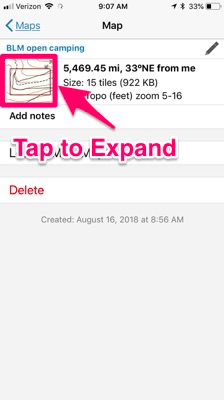 0
0 -
Nathan,
Thank you for your timely response. Though I am wondering if it is possible to allow for downloaded map areas to be downloaded as a shapefile or .kml so that these areas could be stored in a database. Having this database of downloaded map areas can allow people to view all downloaded map areas simultaneously. As well be able to quickly identify what downloaded maps are which.
This also helps for when creating a route and making sure that all parts of this route fall within a downloaded map area. Being able to visualize the downloaded maps boundary along with routes and way points, I think is very beneficial to trip planning.
Also, the areas of green and yellow on my map represent satellite imagery and The National Map basemaps not a created area feature. The red areas are of the OpenTrailsHiking basemap. I do not know why I have multiple colors representing different basemaps.
Thanks!
GeoGian
0 -
Thanks for the extra details.
Currently, it is not possible to download the coverage areas of your offline maps. Due to how Gaia GPS map sources are licensed, viewing the areas of your offline maps is just available in the app or on the website.
To make sure your download maps cover an entire route or track,I recommend checking out the Download Maps Along a Track feature which will download a 2-4 miles wide offline map along the path.0 -

Be thankful that you can at least see an outline of what you have downloaded. That isn't even available on the Android version. downloading larger areas of maps becomes very difficult. Probably not so bad if hiking, but when using Gaia for a driving trip (backcountry 4x4) where many miles are covered in a day downloading maps becomes a dreadful task.
0 -

The "tap to expand" does not work. Instead of expanding the shaded area of my downloaded map, it just puts me in my regular map with no shading - so I have no idea if I'm looking at a downloaded map or not.
The shading should have a simple toggle button, like "show downloaded map only" or "use offline data only", then we would be able to easily confirm that we have downloaded the map area that we need.
I can only see the red shaded area in the tiny window on the top left, with no detail...so it's useless. :(
0
Please sign in to leave a comment.
Comments
5 comments