
High Resolution PDF

it seems like the pdfs that are printed are only good to about 100% scale, anything above that the image starts degrading very quickly, this is when even printing at 11x17 sizes.
is this an issue with me or is this a limitation for GAIA? i would think that with a $40/yr account high resolution printing would be enabled.
please advise how i can correct this,
thanks
-

Printed map resolution is based on your browser's zoom level.
You can zoom in or out in your browser by holding "command", and pressing "+" or "-" (on Windows, hold "control" and press "+" or "-"). This increases or decreases the size of the browser interface.
When printing from gaiagps.com, make sure your browser is set to 100% zoom. This will ensure your printed maps are saved at the highest resolution.
If you continue to have issues, can you email us directly at support@gaiagps.com so we can help you troubleshoot?
-3 -
i don't think you understand what i'm asking.
i'm talking about the poor resolution of the output pdf. i have an outpud pdf from gaia that's 23x16in and the file size is 8MB. it breaks down in resolution when viewing the pdf at anything above 125%, there is no way you're going to convince me that it's an issue of my web browser being at or not 100% when gaia's output is that pathetically low in resolution.
for a high quality, high DPI image, in 23x16in i would expect the output PDF to be closer to 80MB, not 8.
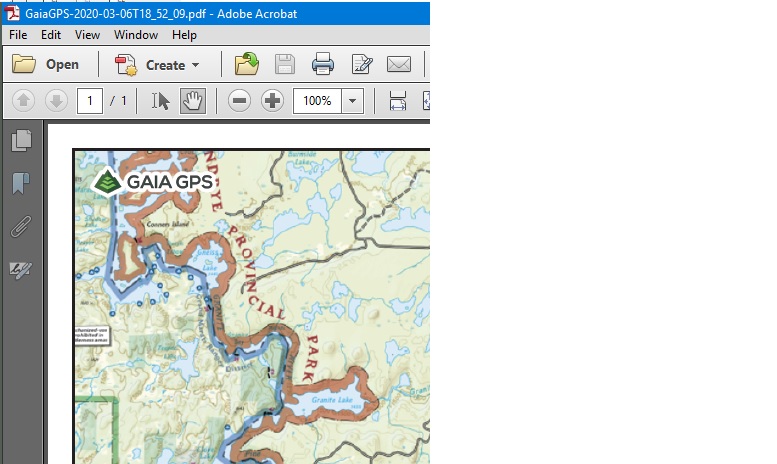
crop @ 100%
crop @ 200%, completely unusable
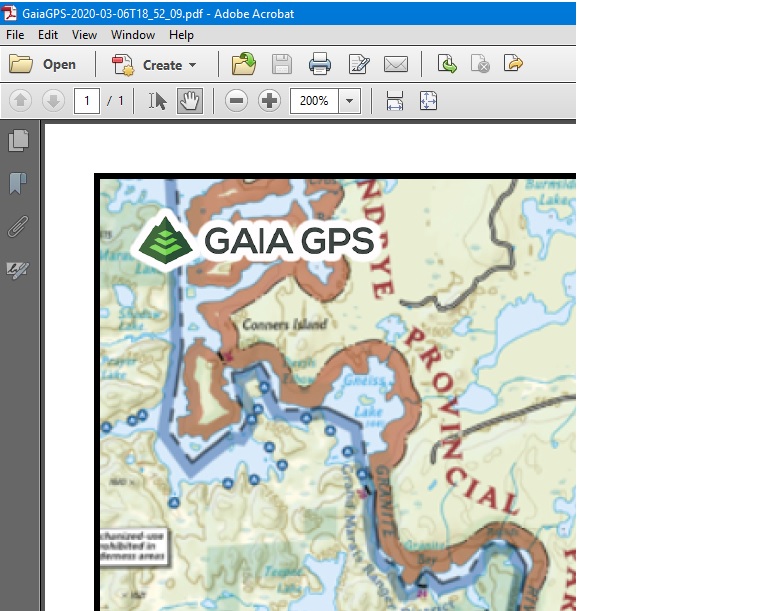
it seems like gaia is intentionally limiting the output resolution -- my question is what is that limit, why does it exist and is there ever a plan to increase it?
2 -

I have this same issue. Would like higher resolution PDFs so that I can print a map with route and waypoints etc. The pdfs created by Gaia aren’t near the resolution to make it usuable.
2 -

Agreed- would love to be able to print high-res PDFs; current printed maps are difficult to read even at high zoom
2 -

Hi all,
I followed what Jim suggested in his original comment. Quoted here:
Printed map resolution is based on your browser's zoom level.
In testing this I have found it to be true and I can vastly increase the quality of the maps I am printing. Make sure to increase your browser zoom before pushing the print button on the map UI. This seemed a little silly to me too at first, but it really does increase the quality of the maps by a huge amount.
Below are screenshots of the same map area taken on a PDF exported to 11"x17" paper using 50%, 100%, and 300% browser zoom.
The screenshots themselves are all looking at the same area of the 11x17 pdf and are all at 500% zoom on my pdf viewer.
50% Browser Zoom
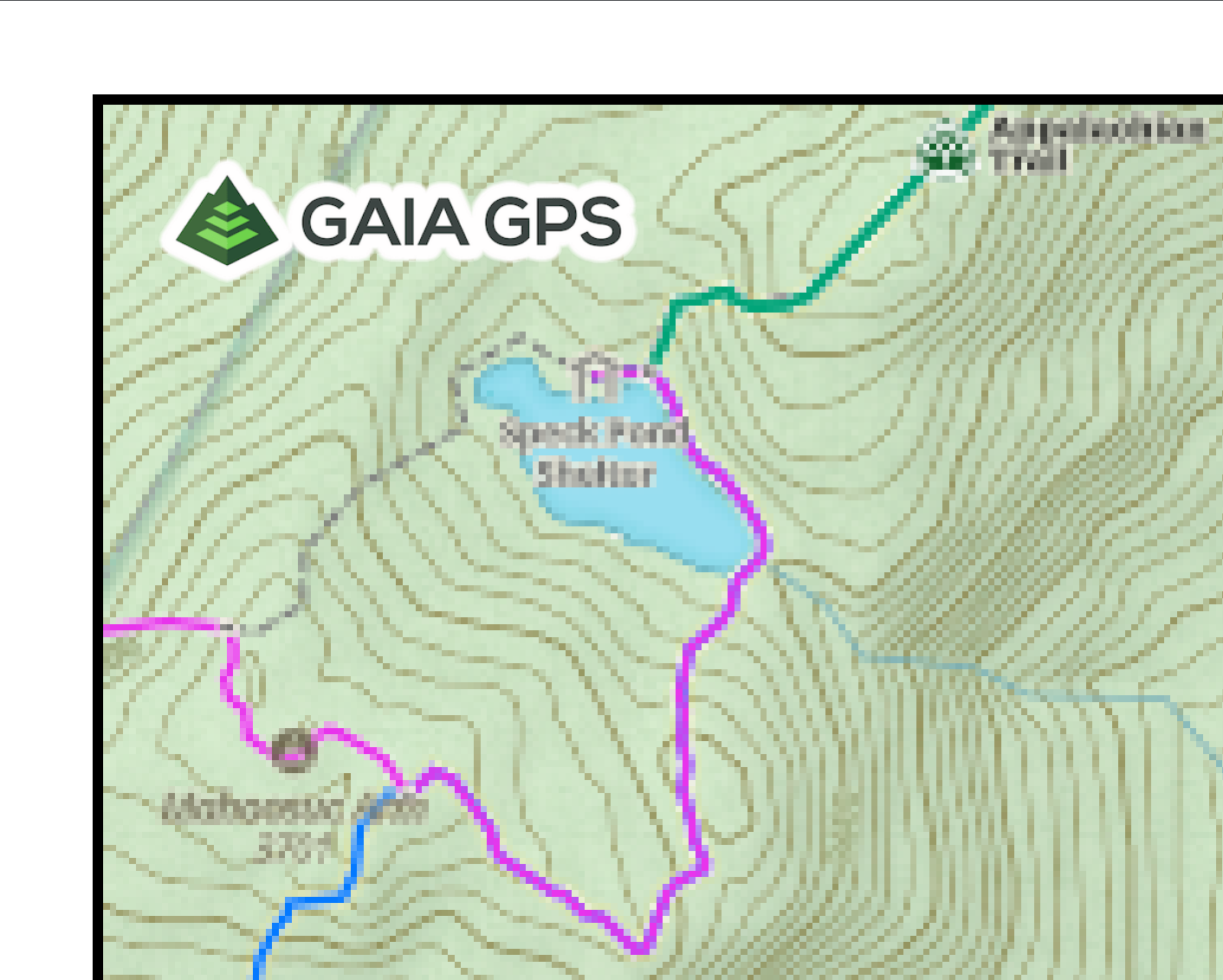
100% Browser Zoom
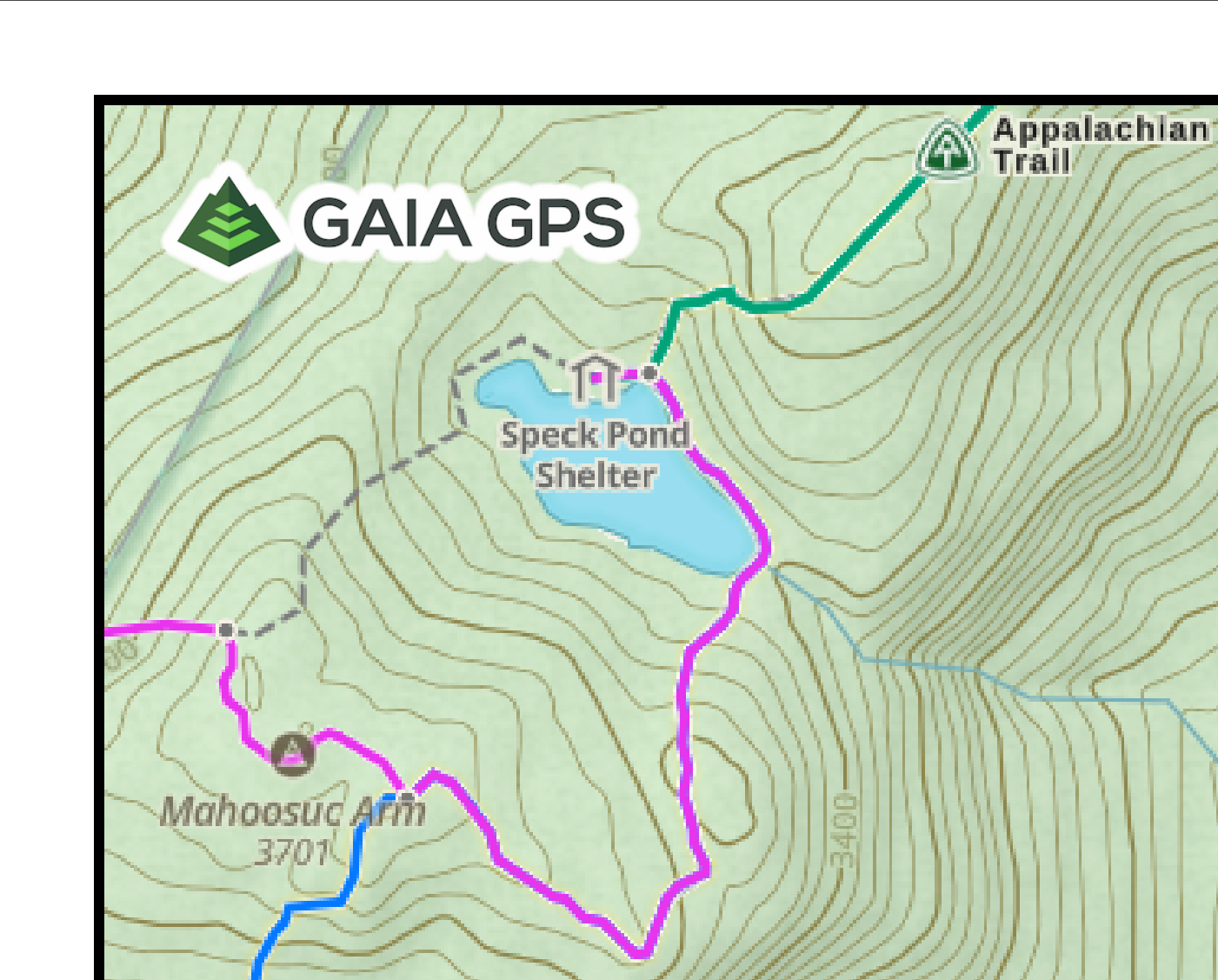
300% Browser Zoom
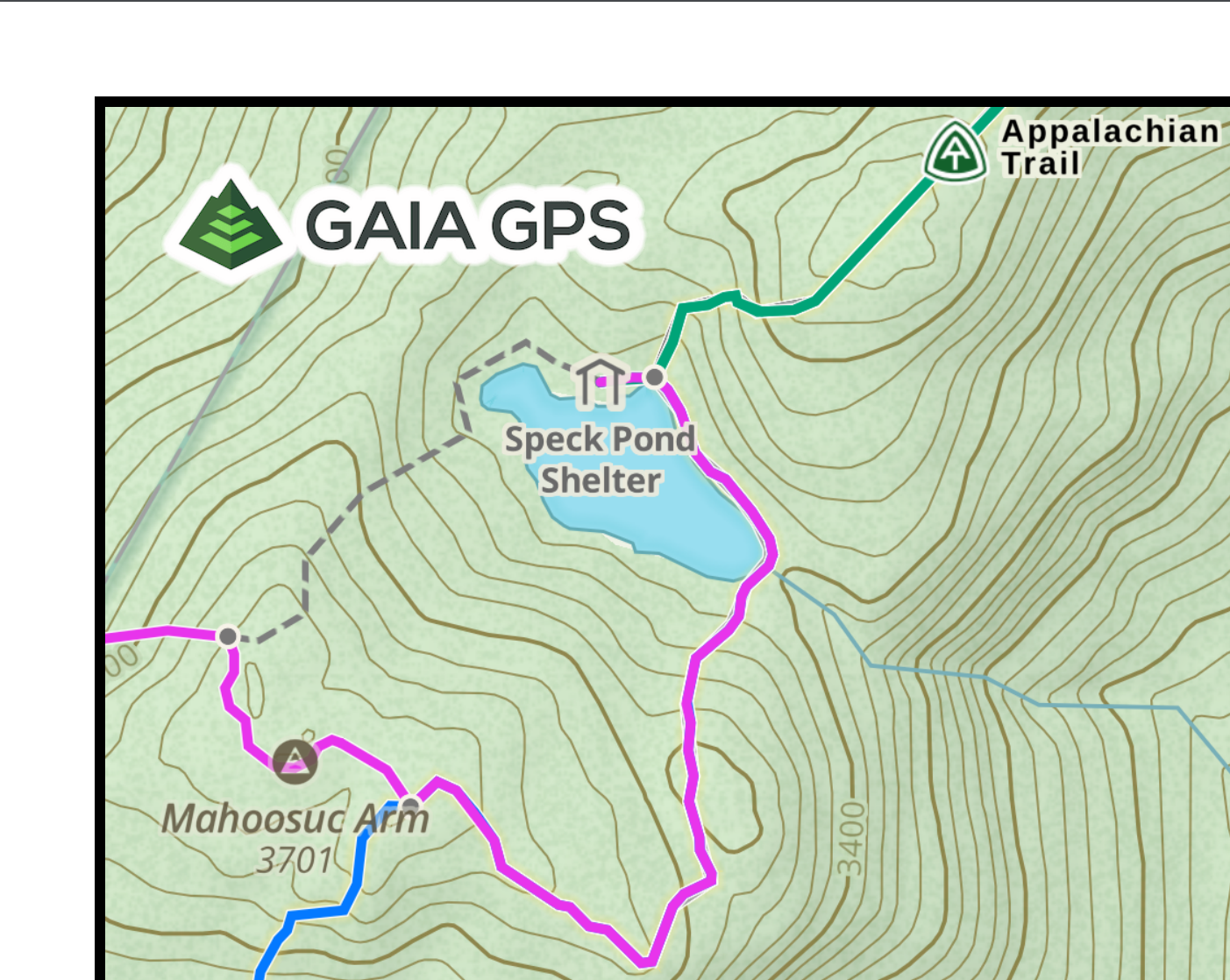
Of course this is a strange solution and it also does increase the file size by a huge amount (~2MB for the 50% zoom one and 97MB for the 300% one). It would be nice if we could have a quality selector in the print menu itself.
Thanks @Jim for the suggestion and @iridium777 for starting the conversation. Hope this helps!
0 -
Fantastic, thanks for this update to this thread! Works brilliantly at 400%!
0 -

@Telianer - Thanks for testing this out. It is a game-changer.
What wasn't clear (though he did say it) in @Jim's response is that all the work is done by the browser. It is not a request sent back to the gaiagps.com servers. So the browser's zoom level (as high as it can go, whatever that is) determines the maximum resolution. Process I used is:
1. Click the print button
2. Get the level of detail you want rendered by putting your mouse in the map and then adjusting the zoom of the map with your mouse wheel (I don't know how else to do it unless you do it before you click the print button). Notice that more features (trail names, altitude values on topo lines) appear as you zoom in, but of course then you cover less area.
3. Click and drag the map to frame the area you want until you have it just right.
4. Then use the browser's zoom control (menu or keyboard shortcut) to get MAXIMUM zoom the browser can do. This will make the page look odd and you may have to use the scroll bars or mouse wheel (not while on the map) to get/keep the "Export PDF" button in view.
5. Click the "Export PDF" button and wait. It may take several seconds for it to generate the map, but eventually it will be ready to Save.0 -

I’m the OP - I don’t understand what you guys don’t understand- if it’s that confusing, print about a 20 mile area in 11x17 format off Gaia and off Caltopo and see the difference. I don’t need a half mile are in 11x17 at the highest resolution, that’s worthless to me, I want a not pixilated map of a 20 mile hike.
And with the 400 zoom trick all it does is that instead of adding details to the map that you naturally would see at 400’zoom detail it omits it all.
This is not a solution or a feature and Gaia should just delete their “response”.
0 -
Totally agree that CalTopo is way better for printing. After thinking more about this, I agree the zoom-the-browser solution is quite limiting because of the problem you describe. You basically have to choose between detail and resolution. Not a very good tradeoff. And who wants to print eight maps for a 20 mile hike?
0
Please sign in to leave a comment.
Comments
9 comments